Dear trader,
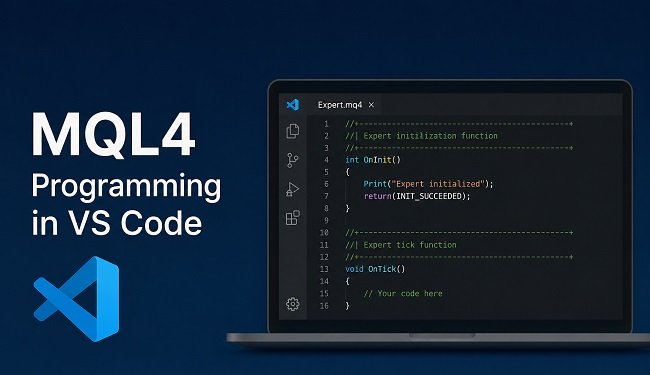
In this article I want to show you how to program in MQL4 from Visual Studio Code. If you have ever used code editors like VSCode or Sublime Text, I am fully convinced that you won’t be very happy with the limited features that MetaEditor (also known as MQL4 Editor, which comes bundled with MetaTrader 4) has to offer when it comes to programming in MQL4.
That is why I would like to walk you through the necessary setup to be able to program in MQL4 from Visual Studio Code, so you can develop your trading strategies without having to give up the conveniences that modern code editors bring to the table.
So without further ado, let’s get to it.
Step 1: Locating the MQL4 Folder
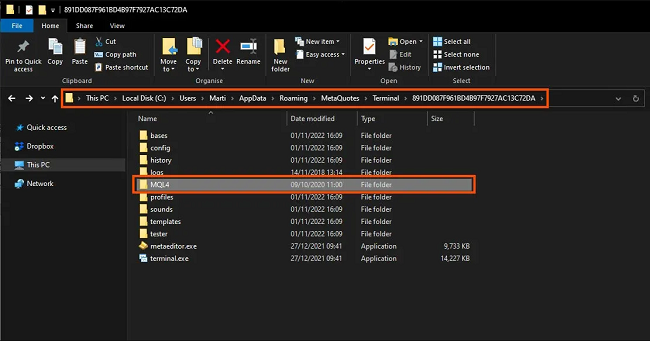
The first thing we need to do is locate the MQL4 data folder inside the MetaTrader 4 installation directory. This folder is very important, since it is where all the source code files for your scripts, indicators, expert advisors, and so on are stored.
It is very easy to find. You just need to have MetaTrader 4 or MetaEditor open and follow these steps:
- Click on “File“
- Click on “Open Data Folder“
The file browser will open and the folder we are looking for will be right there. Now you will also know the path to that folder, which you can copy to use later.
The path will look something like this:
C:\Users\your_name\AppData\Roaming\MetaQuotes\Terminal\461DC08AF8124A4CB976B227AC13C53DE
If you are a more experienced MQL4 user, your folder path will likely be different, since you may well have installed MetaTrader 4 in portable mode to make steps like this much easier and simpler. If that is the case, you will already know where to find it.
Step 2: Pointing to MQL4 from Visual Studio Code
What we will do next is point to the MQL4 data folder from Visual Studio Code. This way we will be able to easily access all of our source code files.
To do this, open VSCode and follow these steps:
- Click on “File“
- Click on “Open Folder…“
- Navigate to the path where the MQL4 folder was located
- Select the MQL4 folder
- Click on “Select Folder“
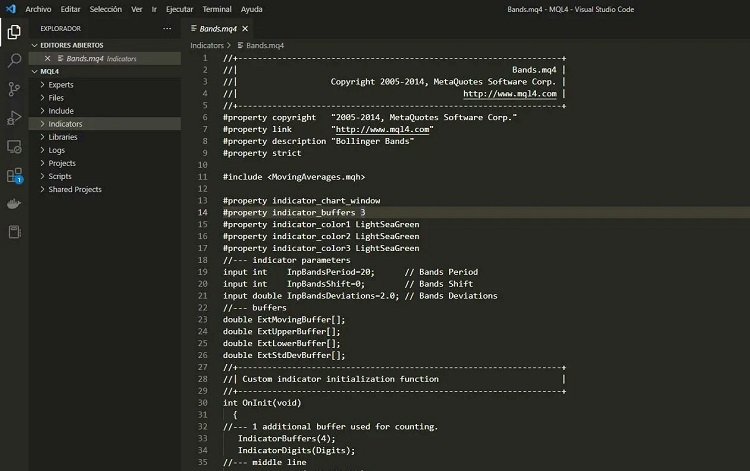
At this point you will see the MQL4 folder and all its subdirectories in VSCode. You will also notice that if you open any .mq4 or .mqh source code file, its syntax is not highlighted in color and all the text appears in white, which makes it extremely difficult to read.
Step 3: Installing the Syntax Extension
To fix this problem, we will head over to the extensions area in VSCode. You can access it through the “View -> Extensions” menu or by pressing CTRL+Shift+X.
Once there, search for the extension “MQL4 Syntax Highlight” and install it.
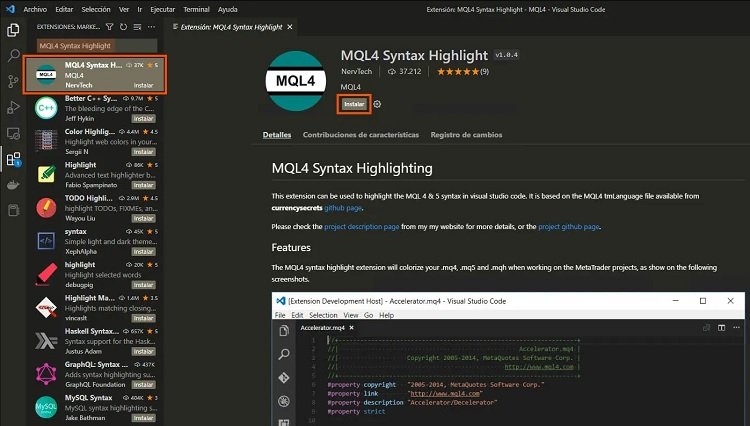
Once you have done that, you will see that VSCode now recognizes MQL4 syntax and allows you to code comfortably.
Step 4: Installing the Compilation Extension
So far, we have managed to get VSCode to recognize MQL4 syntax. However, we still need to be able to compile our code conveniently without having to switch back to MetaEditor.
To do this, go back to the extensions menu, search for “compilemql4” and install it.
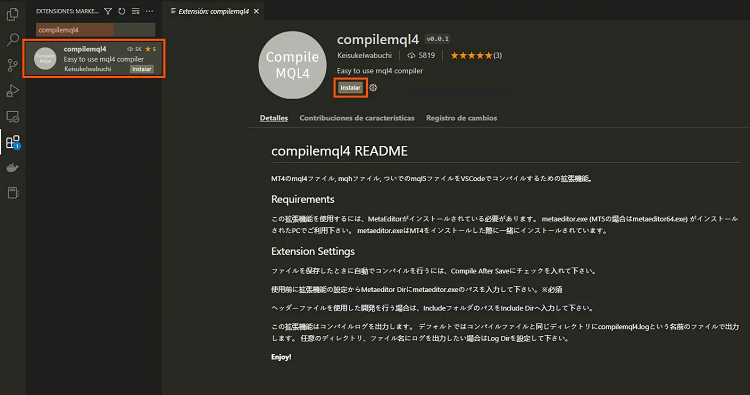
Once installed, you will need to open the extension settings. You can do this by following these steps:
- Click on the “gear” icon on the extension itself
- Click on “Extension Settings“
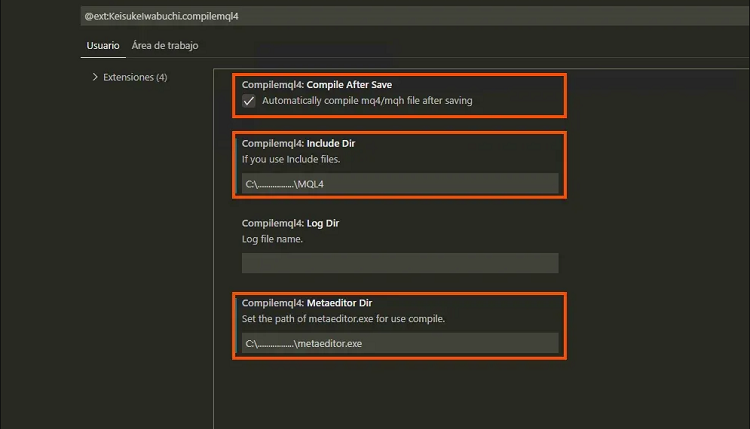
Finally, you will need to enter the paths to the MQL4 folder and to the MetaEditor executable “metaeditor.exe” in order to compile your files correctly. In the image below I show you what your configuration should look like. Let’s go through it step by step.
First, it is recommended to enable the option for the program to automatically compile after saving files.
Second, you will need to enter the MQL4 folder path in the first field, where the “Include Dir” path is configured. This path will look something like this:
C:\Users\your_name\AppData\Roaming\MetaQuotes\Terminal\461DC08AF8124A4CB976B227AC13C53DE
Third and last, you will need to enter the MetaEditor path. That path will look something like this:
C:\Users\your_name\AppData\Roaming\MetaQuotes\Terminal\461DC08AF8124A4CB976B227AC13C53DE\metaeditor.exe
Step 5: Checking that everything works correctly
Finally, let’s verify that everything works properly so you can program in MQL4 within VSCode.
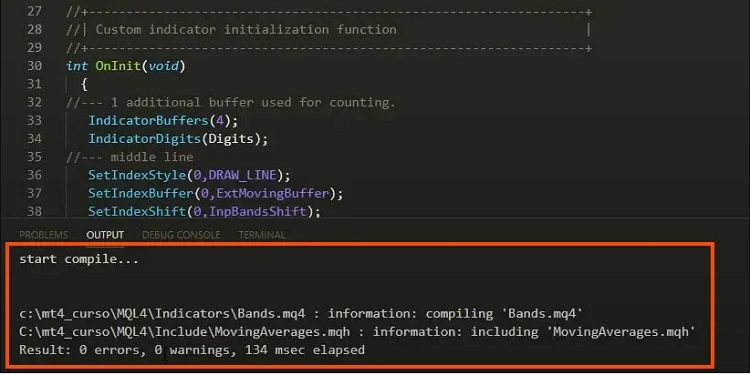
To do this, we can open any source code file, for example the one for the Bollinger Bands indicator called “Bands.mq4“. Then we make a minor modification, such as adding a comment, which will not affect the code in any way.
Finally, to test the compilation, we save the file with CTRL+S or by clicking on “File -> Save” and we will see how our file compiles without any issues (remember the step of enabling the automatic compilation on save feature).
Conclusion
As you can see, the steps to program in MQL4 within Visual Studio Code and configure it correctly are very straightforward. The truth is that being able to work with an editor like VSCode is something to be grateful for, and once you are used to it, going back to MetaEditor4 feels like stepping into the past.
I hope this article has been useful to you, and remember that if you want to learn more about MQL4, you can visit other articles on MT4 programming in ForexDominion.
Thank you for reading.

I am Raúl Canessa, the founder of Forexdominion.com. As an experienced Forex trader, my passion for investing and algorithmic trading has shaped my professional journey. Over the years, I have dedicated myself to refining my skills in the financial markets, allowing me to share my knowledge and insights through my platform. I am committed to helping others understand the world of trading and develop effective strategies for success in this exciting field.