Part 2 of the Ultimate MT5 Tutorial Series
In the previous article we explained what the Metatrader 5 platform is and what its main advantages and disadvantages are. Now we are going to show how to install the application on a personal computer (Windows and Apple) and on mobile devices.
You can access the previous article in this manual at: What is Metatrader 5?
Introduction
You now know what MetaTrader 5 is and why it’s the go-to platform for modern traders. The next step is getting it up and running on your device. The good news: the process is straightforward, free, and takes less than ten minutes from start to finish.
In this guide, we’ll walk through every step — downloading MT5, installing it on Windows, macOS, and mobile devices, creating your first trading account, and logging in for the first time. Whether you’re sitting at a desktop or trading on the go, this article has you covered.
Before You Begin: Choosing a Broker
MT5 is free software, but to trade real or demo money you need to connect it to a broker’s server. Your broker provides:
- The server address to connect MT5 to
- Your account number and password (sent by email after registration)
- The list of tradable instruments available on their platform
If you don’t have a broker yet, most major brokers (IC Markets, Pepperstone, XM, FPMarkets, and others) offer free demo accounts with no deposit required. A demo account is the perfect environment to learn the platform with zero financial risk.
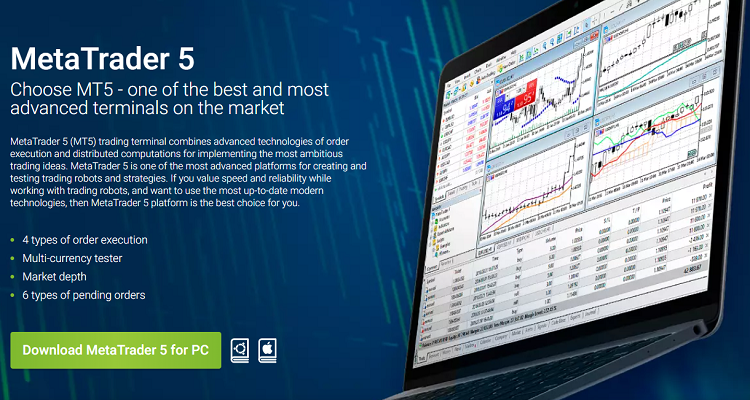
Part 1: Downloading & Installing MT5 on Windows
Windows is the most common environment for MT5, and the installation process is simple.
Step 1 — Download the installer
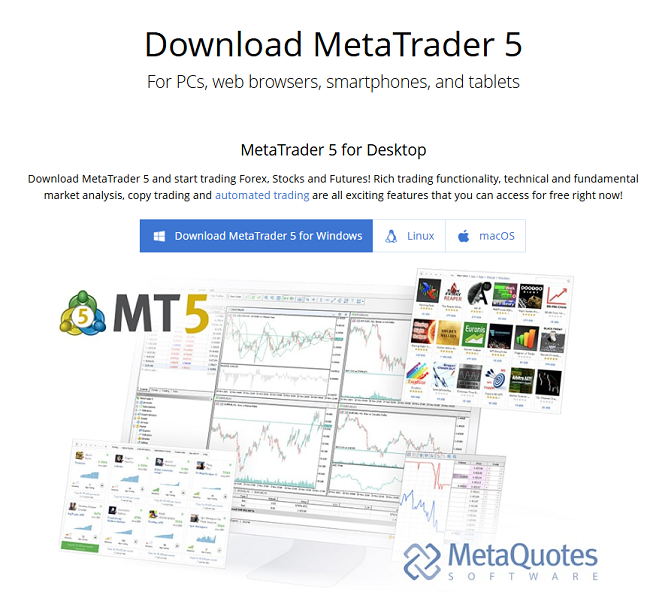
Go to your broker’s official website and look for the “Download MT5” or “Trading Platforms” section. Most brokers offer a direct installer pre-configured with their server. Alternatively, you can download the universal installer directly from the official MetaQuotes website at metaquotes.net.
Click the download button and save the .exe file to your computer.
Step 2 — Run the installer
Locate the downloaded .exe file (usually in your Downloads folder) and double-click it to launch the installer. If Windows asks for permission via a User Account Control (UAC) prompt, click Yes.
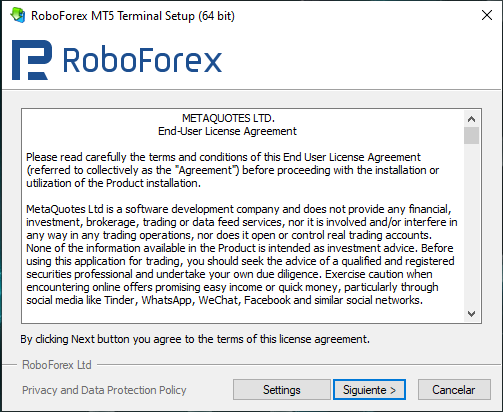
Step 3 — Complete the installation wizard
The installer is a simple wizard with just a few clicks:
- Read and accept the License Agreement
- Choose an installation folder (the default is fine for most users)
- Click Next and wait for the files to install — this typically takes 30–60 seconds
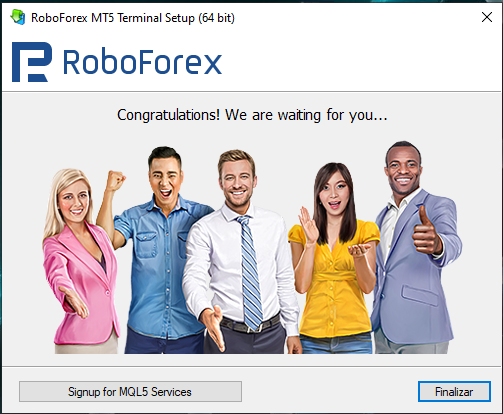
- On the final screen, leave “Launch MetaTrader 5” checked and click Finish
MT5 will open automatically when installation completes.
Part 2: Downloading & Installing MT5 on macOS
MetaQuotes released a native macOS version of MT5, so you no longer need to run Windows emulation software.
Step 1 — Download from the Mac App Store
The easiest method is to search for “MetaTrader 5” in the Mac App Store and click Get. This ensures you always have the latest version and updates automatically.
Alternatively, download the .dmg file from your broker’s website or from metaquotes.net.
Step 2 — Install the app
If using the App Store, the installation is automatic. If using the .dmg file:
- Open the downloaded .dmg file
- Drag the MetaTrader 5 icon into your Applications folder
- Eject the disk image
- Open MT5 from your Applications folder or Launchpad
On first launch, macOS may show a security warning since the app is from the internet. Go to System Settings → Privacy & Security and click Open Anyway.
Part 3: Downloading & Installing MT5 on Mobile
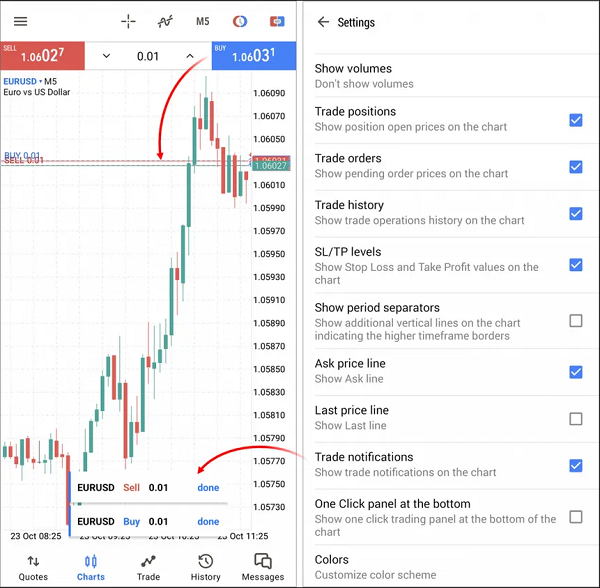
The MT5 mobile app gives you full trading capability from anywhere. It’s available for both iOS and Android.
On iPhone / iPad (iOS)
- Open the App Store
- Search for “MetaTrader 5” (developer: MetaQuotes Ltd.)
- Tap Get and authenticate with Face ID, Touch ID, or your Apple ID password
- Once installed, tap Open
On Android
- Open Google Play
- Search for “MetaTrader 5” (developer: MetaQuotes Ltd.)
- Tap Install
- Once installed, tap Open
⚠️ A note on fake apps: There are counterfeit MetaTrader apps on both stores. Always verify the developer name is MetaQuotes Ltd. and check that the app has hundreds of thousands of reviews. Never download MT5 APKs from third-party websites.
Part 4: Opening a Demo Account
A demo account uses virtual money to simulate real market conditions — essential for every new user. Here’s how to open one directly inside MT5.
On Desktop (Windows or macOS)
When MT5 launches for the first time, an account setup wizard will appear automatically. If it doesn’t, go to File → Open an Account in the top menu.
Follow these steps in the wizard:
- In the search bar, type your broker’s name (e.g., “Pepperstone” or “ICMarkets”)
- Select your broker from the list and click Next
- Choose “Open a demo account” and click Next
- Fill in your details: name, email, leverage, deposit amount (this is virtual money), and account currency
- Check “I agree to the Terms of Use” and click Next
- MT5 will generate your account number and password — write these down or take a screenshot
On Mobile
- Open the MT5 app and tap the menu icon (☰) in the top-left corner
- Tap Manage Accounts → Add Account
- Tap Open a Demo Account with a broker
- Search for and select your broker
- Fill in the required details and tap Open Account
Your login credentials will be shown on screen and also sent to your email.
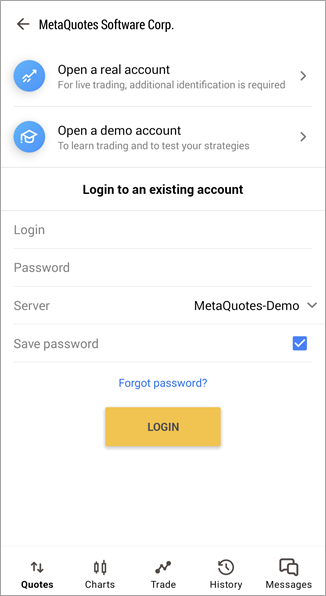
Part 5: Logging In to MT5
Once you have your account credentials (account number, password, and server name), logging in is simple.
On Desktop
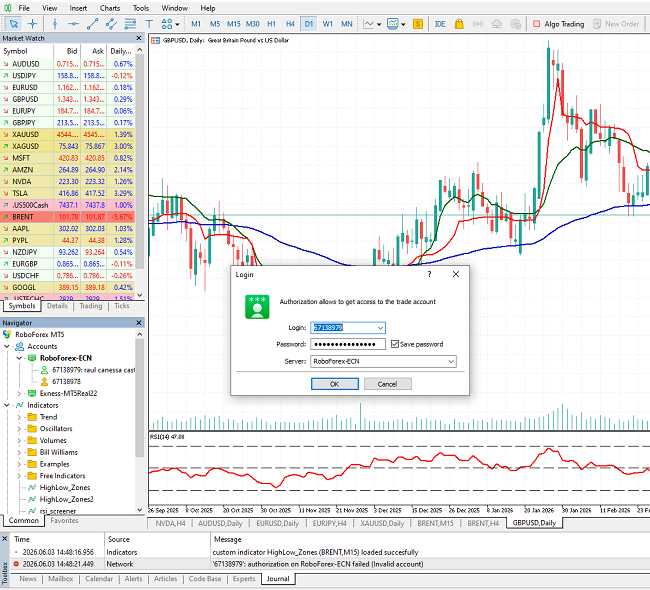
If the login window doesn’t appear automatically, go to File → Login to Trade Account.
Enter the following:
- Login — your account number (e.g., 12345678)
- Password — your account password
- Server — select your broker’s server from the dropdown (e.g., “PepperstoneLtd-Demo”)
Click Login. A green connection indicator in the bottom-right corner of MT5 confirms a successful connection.
On Mobile
- Open the app and navigate to Settings → New Account or tap the account selector at the top of the screen
- Enter your login number, password, and select your server
- Tap Sign In
A green dot next to your account name confirms you are connected.
Understanding the Connection Status Bar
At the very bottom-right of the MT5 desktop window, you’ll find a small status indicator. This tells you whether you’re connected to your broker’s server:
- Green bar / “Connected” — everything is working normally
- Yellow / “No connection” — MT5 is trying to reconnect
- Red / error message — check your internet connection or server details
Troubleshooting Common Issues
“Invalid account” error on login: Double-check that you selected the correct server. Demo and live accounts use different servers (e.g., “BrokerName-Demo” vs “BrokerName-Live”).
MT5 won’t connect after installation: Make sure your firewall or antivirus isn’t blocking MT5. Try adding MT5 as an exception in your firewall settings.
Can’t find my broker in the account wizard: Try searching with variations of the broker’s name, or contact your broker directly for their exact server name.
MT5 installed on Mac shows security warning: This is a standard macOS Gatekeeper warning for apps downloaded outside the App Store. Go to System Settings → Privacy & Security → Open Anyway.
Conclusion
With MT5 installed and your demo account connected, you now have a fully functional trading platform at your fingertips. Before risking any real capital, spend time exploring the interface, opening practice trades, and getting comfortable with how charts and orders work.
In the next article, we’ll take a guided tour of the MT5 interface — learning every panel, menu, and toolbar so you always know exactly where to find what you need.

I am Raúl Canessa, the founder of Forexdominion.com. As an experienced Forex trader, my passion for investing and algorithmic trading has shaped my professional journey. Over the years, I have dedicated myself to refining my skills in the financial markets, allowing me to share my knowledge and insights through my platform. I am committed to helping others understand the world of trading and develop effective strategies for success in this exciting field.