Part 4 of the Ultimate MT5 Tutorial Series
Introduction
You’ve installed MT5, opened a demo account, and toured the interface. Now comes the moment that makes everything feel real: placing your first trade.
Don’t worry — this guide uses a demo account, so there’s zero financial risk while you learn. By the end of this article, you’ll have placed, watched, and closed your first market order, and you’ll understand exactly what each field in the order panel means.
What Is a Market Order?
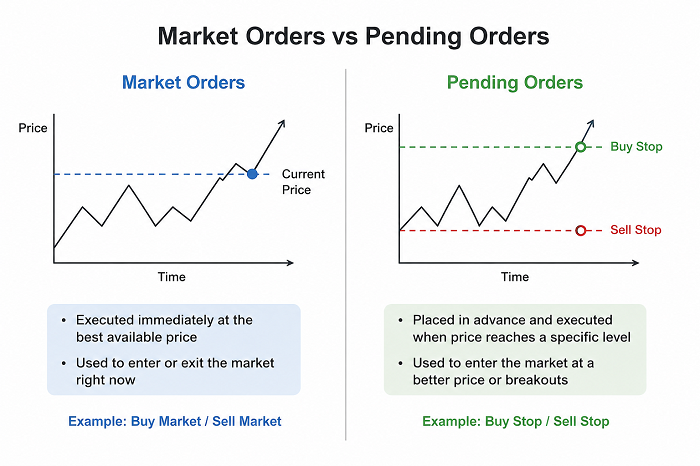
A market order is the simplest type of trade: you buy or sell an instrument immediately, at the current market price. There’s no waiting, no conditions — you click a button, and the trade executes within a fraction of a second.
This is different from a pending order (like a Buy Limit or Sell Stop), which only executes once the price reaches a level you specify. We’ll cover pending orders in a future article — for now, we’re focused on the fastest and most direct way to enter the market.
Step 1: Make Sure You’re on a Demo Account
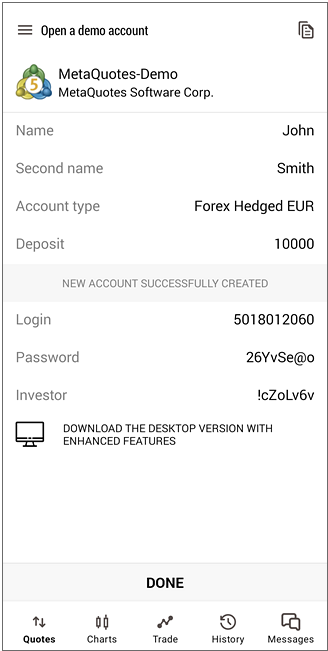
Before placing any trade, double-check which account you’re connected to. Look at the top of your Navigator panel — your active account is marked with a small gold star, and the account type (Demo or Real) is shown in the title bar at the top of the MT5 window.
⚠️ This entire guide assumes you’re using a demo account. Never practice your first trades with real money.
Step 2: Open a Chart for the Instrument You Want to Trade
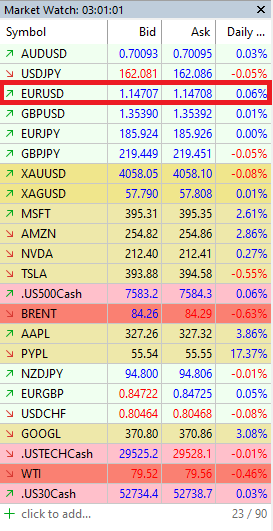
For your first trade, pick something simple and widely traded — EUR/USD is the most common choice for beginners due to its low volatility and tight spread.
- In the Market Watch panel, find EUR/USD
- Double-click it to open a chart
Step 3: Open the New Order Window
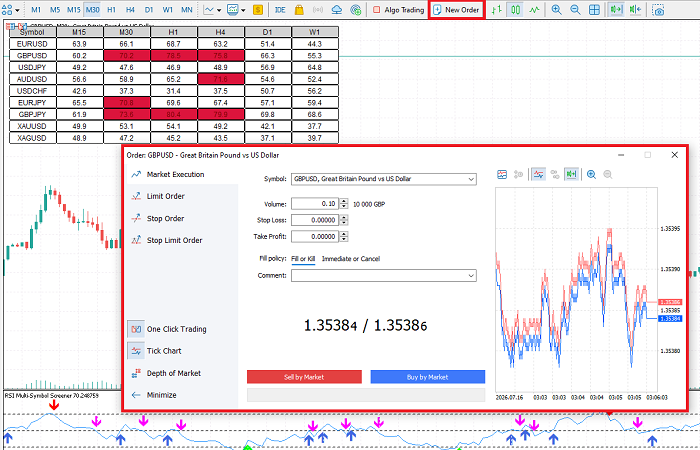
There are three ways to open the order panel — pick whichever feels most natural:
- Method 1 — Toolbar button: Click the “New Order” icon in the standard toolbar (it looks like a small page icon).
- Method 2 — Keyboard shortcut: Press F9 on your keyboard.
- Method 3 — Right-click: Right-click anywhere on the chart and select Trading → New Order.
All three methods open the same window: the Order panel.
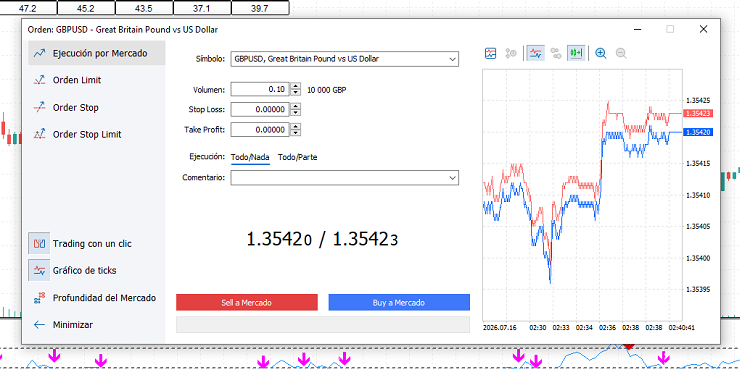
Step 4: Understanding the Order Panel
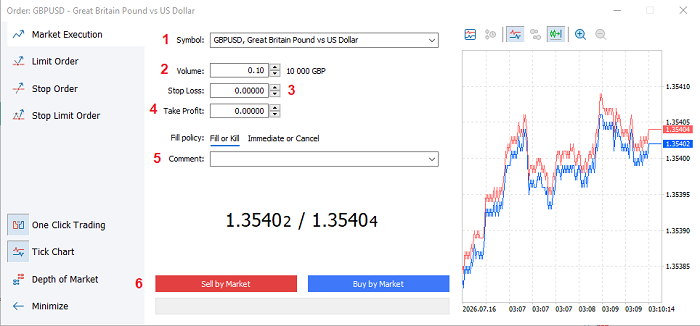
This is the most important screen in the entire trading process. Let’s break down every field.
- Symbol — The instrument you’re trading (e.g., EUR/USD). You can change it here if needed.
- Volume — The size of your trade, measured in lots. A standard lot = 100,000 units of the base currency. For your first trade, use the smallest size available — typically 0.01 lots (a “micro lot”), which limits your exposure while you learn.
- Stop Loss (S/L) — The price level at which your trade will automatically close to limit your losses. Highly recommended on every trade, even in demo.
- Take Profit (T/P) — The price level at which your trade will automatically close to lock in profits.
- Comment — An optional text note you can attach to the trade (useful for journaling your reasoning later).
- Sell / Buy buttons — Two large buttons at the bottom of the panel. Each shows the current live price:
- Sell button shows the Bid price (the price you sell at)
- Buy button shows the Ask price (the price you buy at)
Step 5: Decide — Buy or Sell?
This comes down to one simple question: do you think the price will go up or down?
- If you believe the price will rise → click Buy
- If you believe the price will fall → click Sell
For this first practice trade, it genuinely doesn’t matter which direction you choose — the goal is to understand the mechanics, not to predict the market correctly.
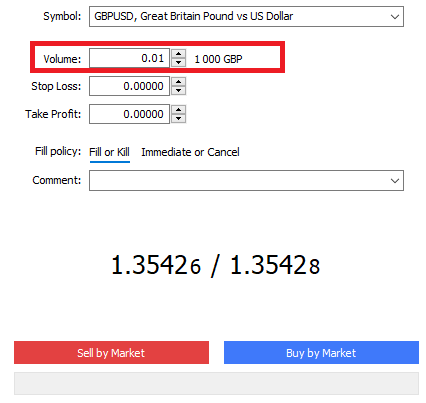
Step 6: Set Your Volume to 0.01 Lots
In the Volume field, make sure it reads 0.01. This is the smallest possible trade size on most accounts and is ideal for your first few practice trades — it keeps potential profit and loss tiny while you focus on learning the process.
Step 7: (Optional but Recommended) Set a Stop Loss
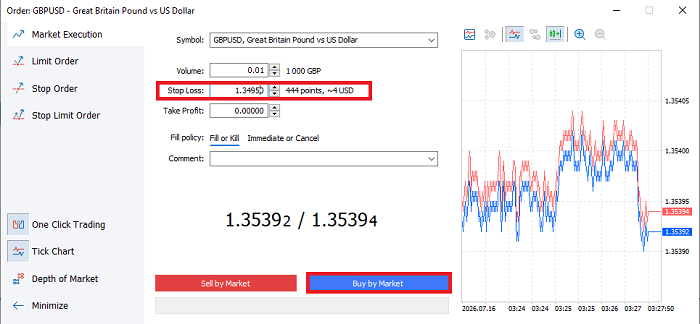
Even on a demo account, it’s good practice to build the habit of using a Stop Loss from day one.
- Look at the current price shown on your chart
- In the S/L field, enter a price a small distance away from the current price (for EUR/USD, try 20–30 pips away)
- If you’re unsure of the exact price, you can also right-click on the chart after opening the trade and drag the S/L line directly on the chart
Step 8: Click Buy or Sell
Take a breath, double-check your Volume is 0.01, and click your chosen button.
That’s it — you’ve placed your first trade.
MT5 will immediately:
- Open a new position
- Display it in the Terminal → Trade tab at the bottom of the screen
- Draw a line directly on your chart showing your entry price
Step 9: Watching Your Open Trade
Once your trade is open, head to the Terminal → Trade tab. Here you’ll see, updating in real time:
- Open Price — the price at which your trade was executed
- Current Price — the live market price right now
- Swap — a small interest charge or credit for holding the position overnight (usually 0 if you close the same day)
- Profit — your live profit or loss in your account currency, updating tick by tick
Watch this number for a minute or two. You’ll see it fluctuate slightly with every price movement — this is the platform doing exactly what it’s supposed to do.

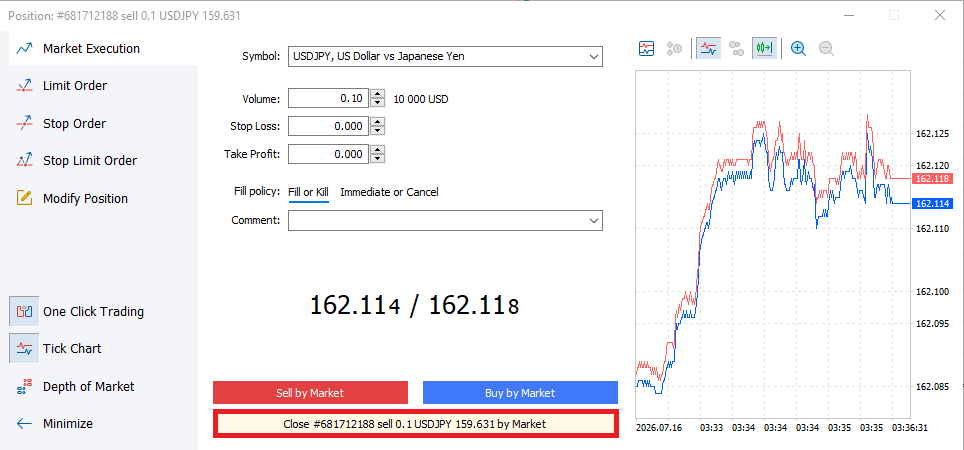
Step 10: Closing Your Trade
When you’re ready to close the position, you have two easy options:
-Option A: In the Terminal → Trade tab, find your open position and click the small “x” icon at the end of its row.
-Option B: Right-click the position in the Trade tab and select Close Position.
A confirmation window will appear showing your final price and profit/loss — click Close to confirm.
What Just Happened? A Quick Recap
- You opened the order panel (F9)
- You chose Buy or Sell based on your price prediction
- You set a tiny volume (0.01 lots) to limit risk
- You optionally set a Stop Loss for protection
- You executed the trade and watched it live in the Terminal
- You closed the position and saw your final result
This exact loop — analyze → enter → monitor → exit — is the core cycle of all trading, no matter how advanced you eventually become.
A Few Beginner Tips
- Trade small, trade often (on demo). Place several practice trades this week. Repetition is what makes the order panel feel automatic instead of intimidating.
- Always know your Volume before clicking Buy/Sell. The single most common beginner mistake is accidentally trading 1.00 lot instead of 0.01 lot — a 100x difference in risk.
- Check your Stop Loss every time. Even experienced traders sometimes forget; building the habit now will protect you later when real money is involved.
- Don’t worry about being “right.” Your first trades are about learning the platform, not making correct market predictions.
Conclusion
Congratulations — you’ve now completed the full trading cycle in MT5, from opening the order panel to closing a live position. This is the exact same process you’ll use whether you’re trading micro lots on demo today or managing a full portfolio years from now. The mechanics never change; only your strategy and confidence will grow.
In the next article, we’ll go a level deeper and cover pending orders — Buy Limit, Sell Limit, Buy Stop, and Sell Stop — and how to use them to enter trades automatically at the price levels you choose, even while you’re away from your screen.
Next up: Beyond Market Orders: Using Buy Limit, Sell Limit, and Stop Orders →

I am Raúl Canessa, the founder of Forexdominion.com. As an experienced Forex trader, my passion for investing and algorithmic trading has shaped my professional journey. Over the years, I have dedicated myself to refining my skills in the financial markets, allowing me to share my knowledge and insights through my platform. I am committed to helping others understand the world of trading and develop effective strategies for success in this exciting field.